Version History
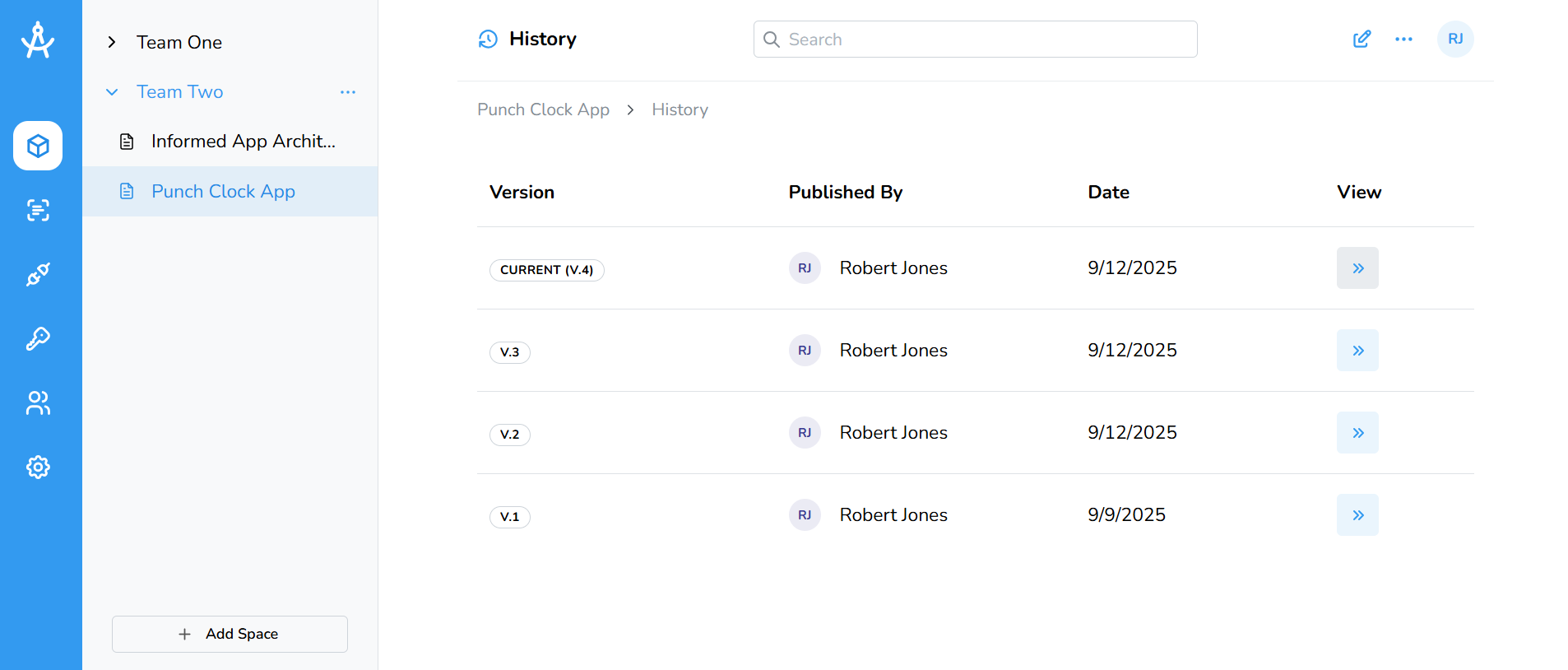
Cartographer automatically keeps a complete history of your document each time you publish a new version. You can easily browse past versions and revert to any previous one whenever you need.
- On the right-hand side, click the ellipsis (⋯) and select Version History.
- A table of all previous versions will appear. Find the version you’d like to review and click the chevron icon next to it.
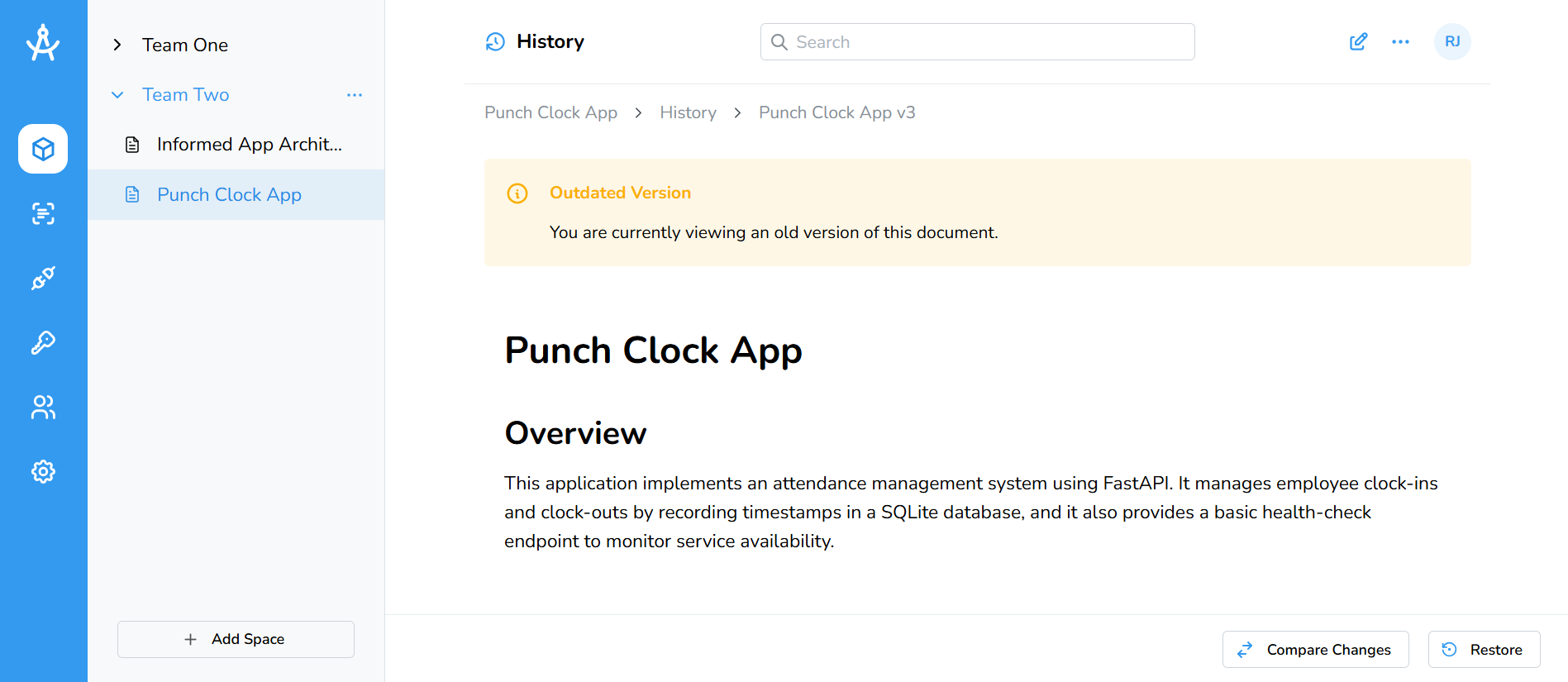
- This opens the selected version for viewing. To compare it with the current version, click Compare Changes in the bottom-right corner. The differences will be highlighted.
- To restore a version, click the Restore button. Your current version will be saved in the history, and the selected version will become the new current version.