Confluence
Cartographer seamlessly integrates with Confluence, allowing you to instantly generate and update Confluence pages from your Cartographer documents with a single click.
Connecting to Confluence
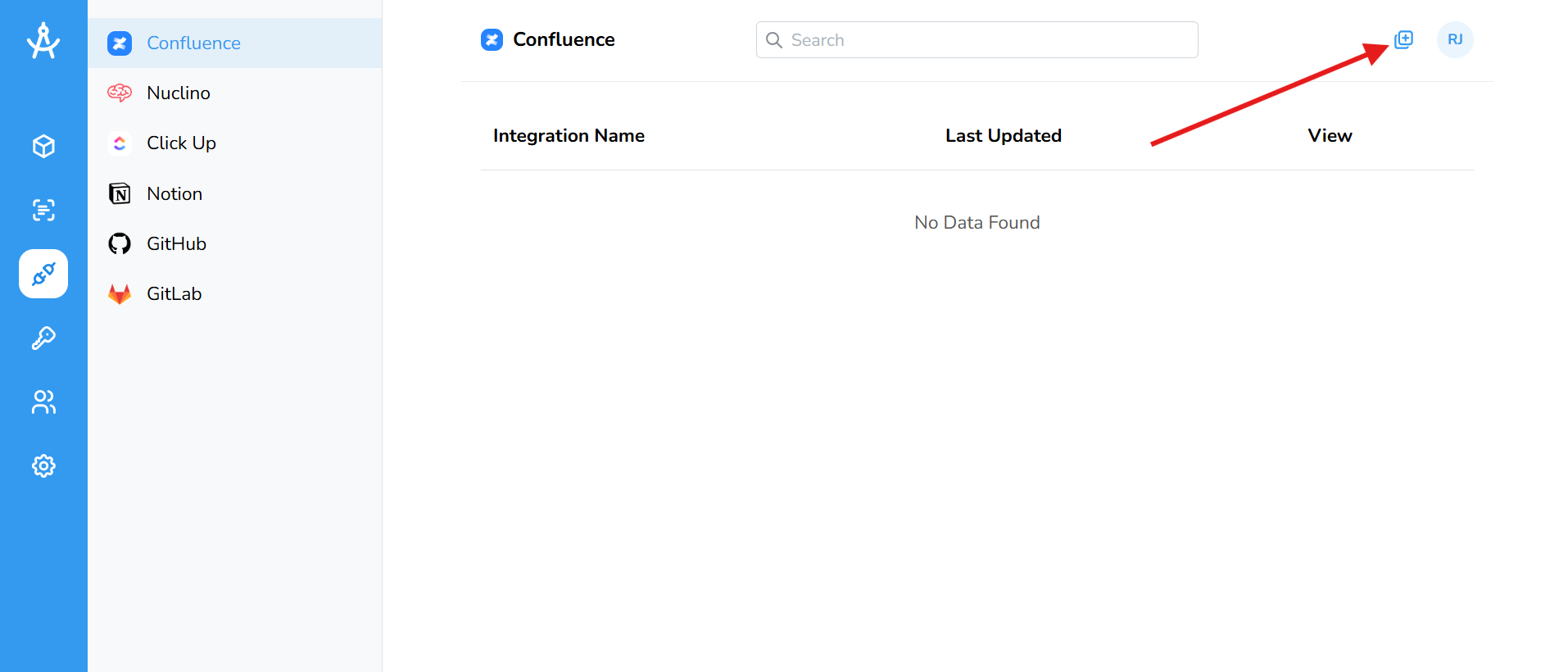
- In the left-hand menu, click the Integrations navigation button.
- In the top-right toolbar, click the Add Confluence Integration icon.
- You’ll be redirected to Confluence. Ensure you’re signed in to the Confluence instance you want to connect. When prompted for permissions, click the Accept button at the bottom.
- Once connected, the integration will appear in your table. You can edit or delete it at any time by clicking the chevron icon. Additionally, you can set a default space for publishing and update the integration’s name as needed.

Syncing your documents to Confluence
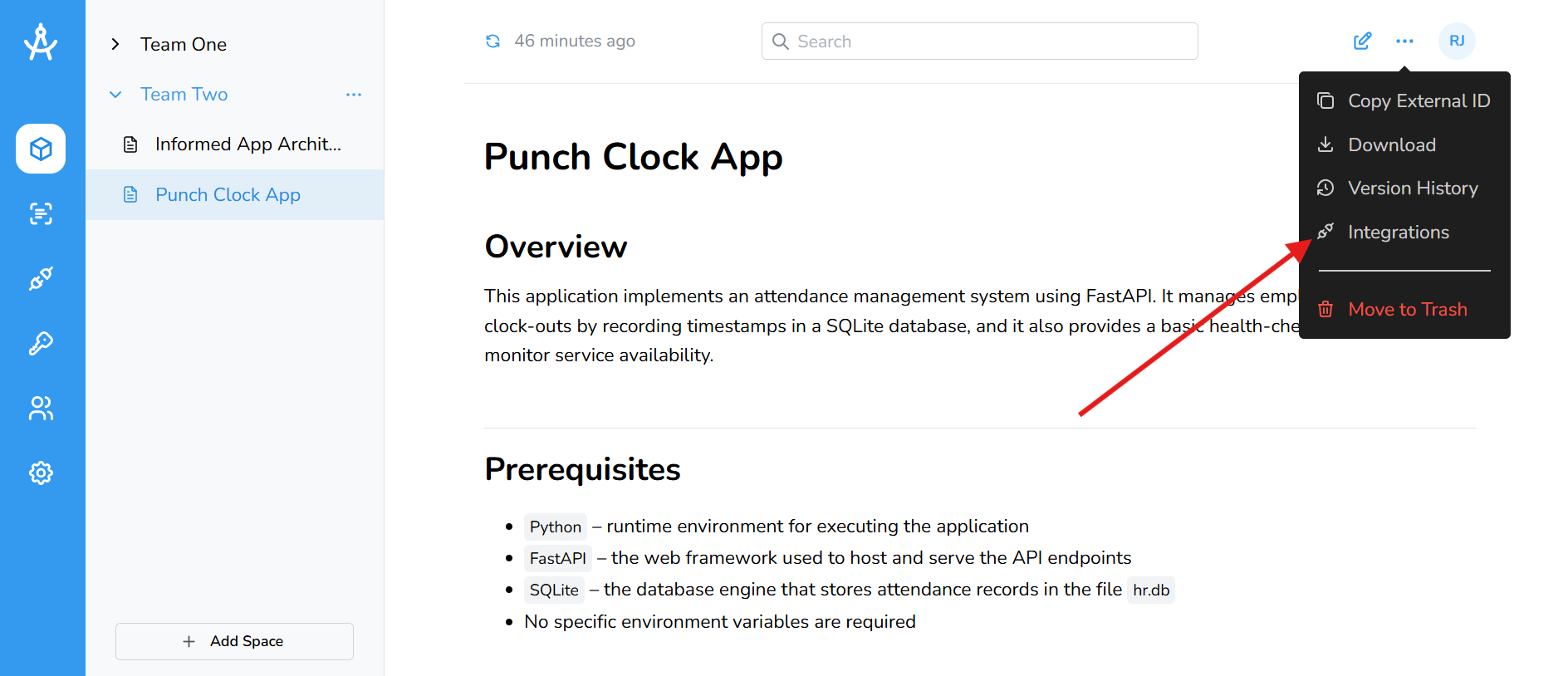
- Navigate to the document you want to sync. In the top-right toolbar, click the ellipsis (⋯) and select Integrations.
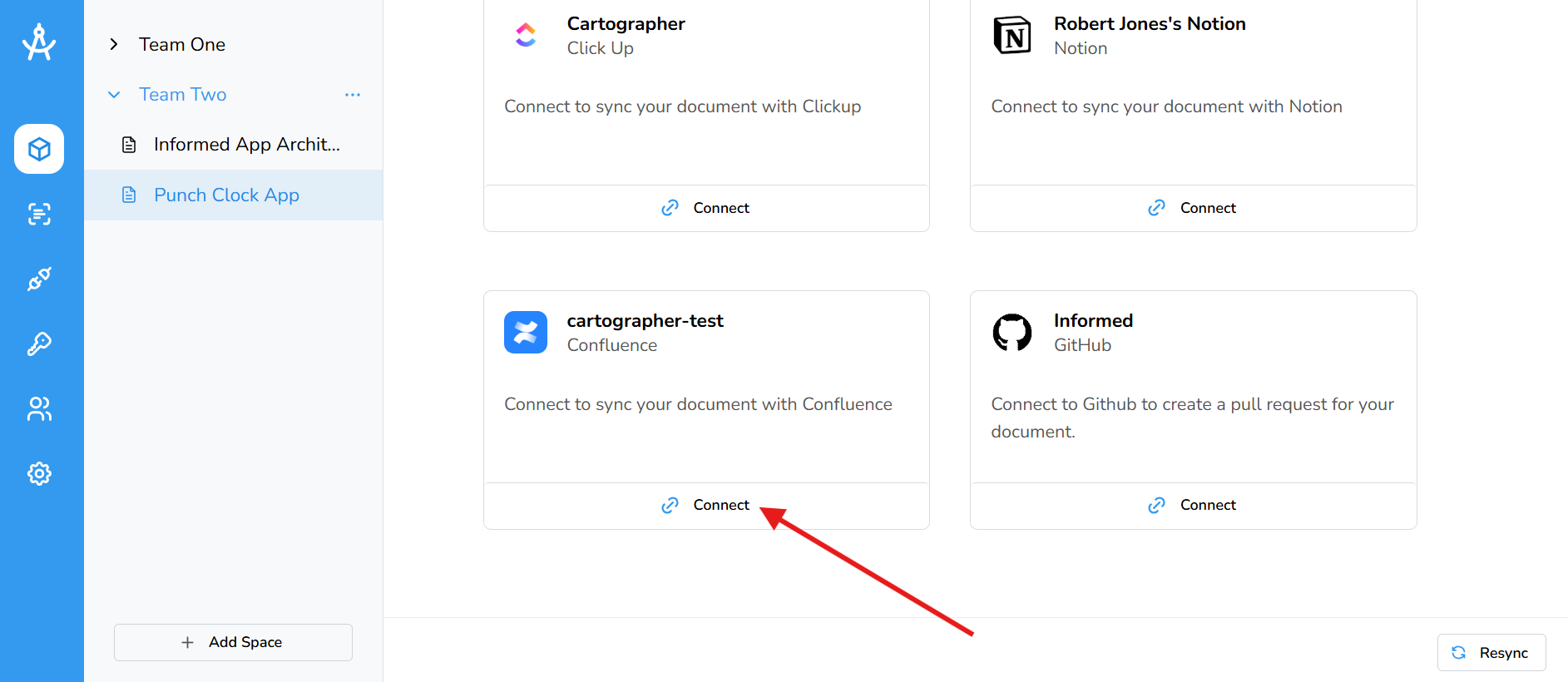
- Your Confluence integration will appear in the grid view. Click the Connect button to link your document to your Confluence instance.
-
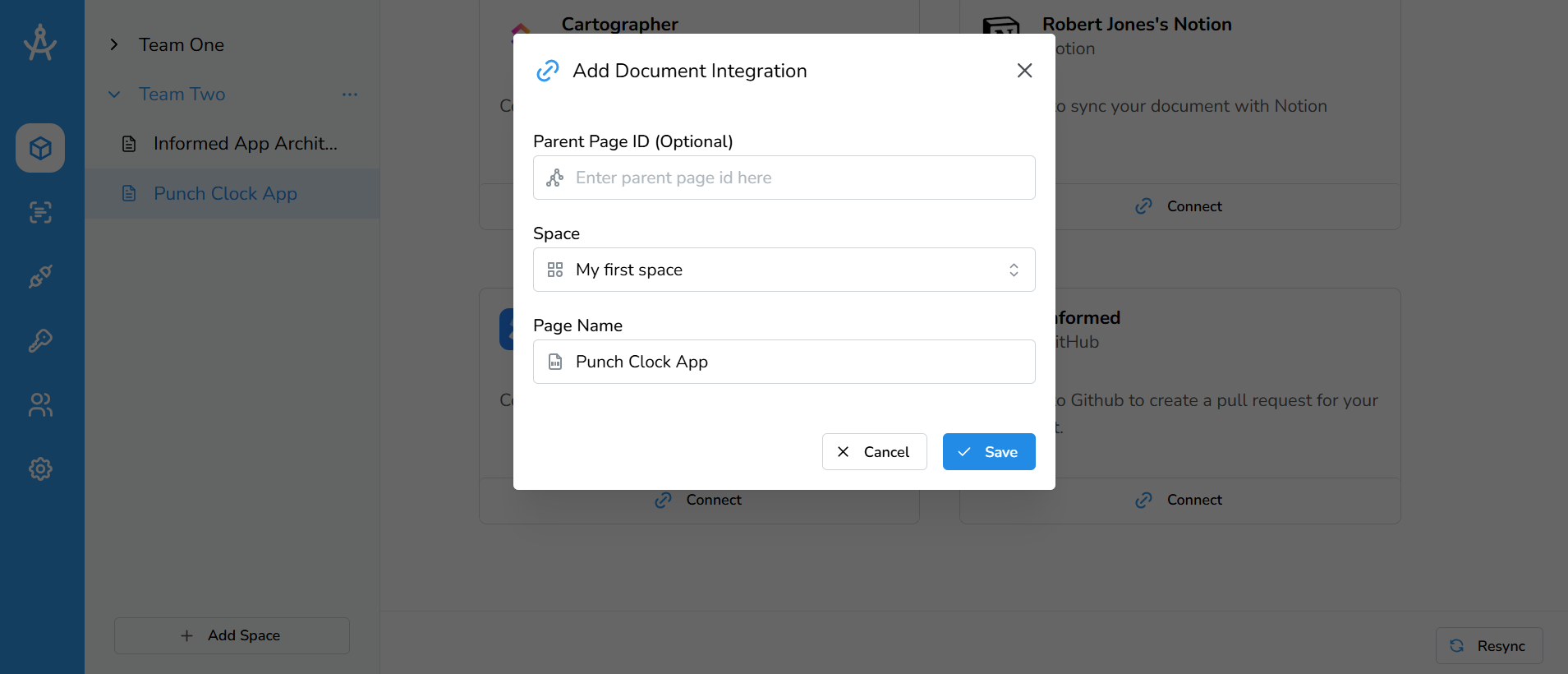
A modal will appear prompting for three fields:
Parent Page ID, Space, and
Document Name.
- Parent Page ID (optional): Use this if you want your document nested under another page or folder. Leaving it blank places the document at the root of the space.
- Space: Defaults to your integration’s default space. You can select a different space from the dropdown.
- Document Name: The name your page will have in Confluence. Defaults to your Cartographer document name.
- Once all required fields are filled out, click Save to connect.
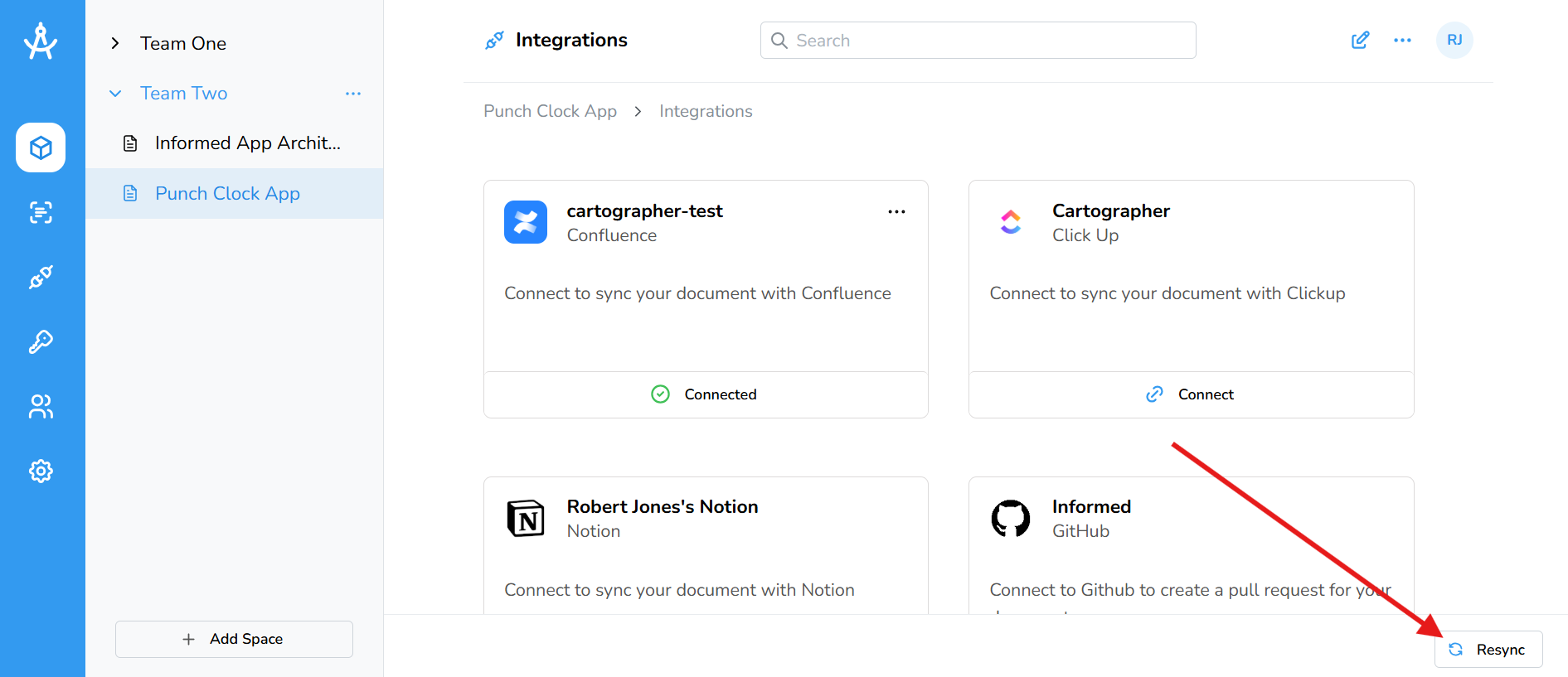
- Once your document is connected, you must click the Resync button in the bottom-right corner to create or update Confluence pages. This ensures that any edits, additions, or formatting changes in your Cartographer document are reflected in Confluence. Click Resync whenever you make changes to keep your Confluence pages up to date.
- To edit or delete a document integration, click the ellipsis (⋯) icon to access the available options.
- That’s it! Your document is now viewable in Confluence.